Need to see or change patient information? The Patient page is the right place! The Patient page displays important information for registered patients in your daisyBill account, including all their associated injuries.
For instructions on adding a new Patient, see the Help Article: Add Patient.
Managing patient-specific information is as simple as following these instructions:
How to Navigate to a Patient Page
Step 1. Type the patient’s name into the search bar, then click the patient’s name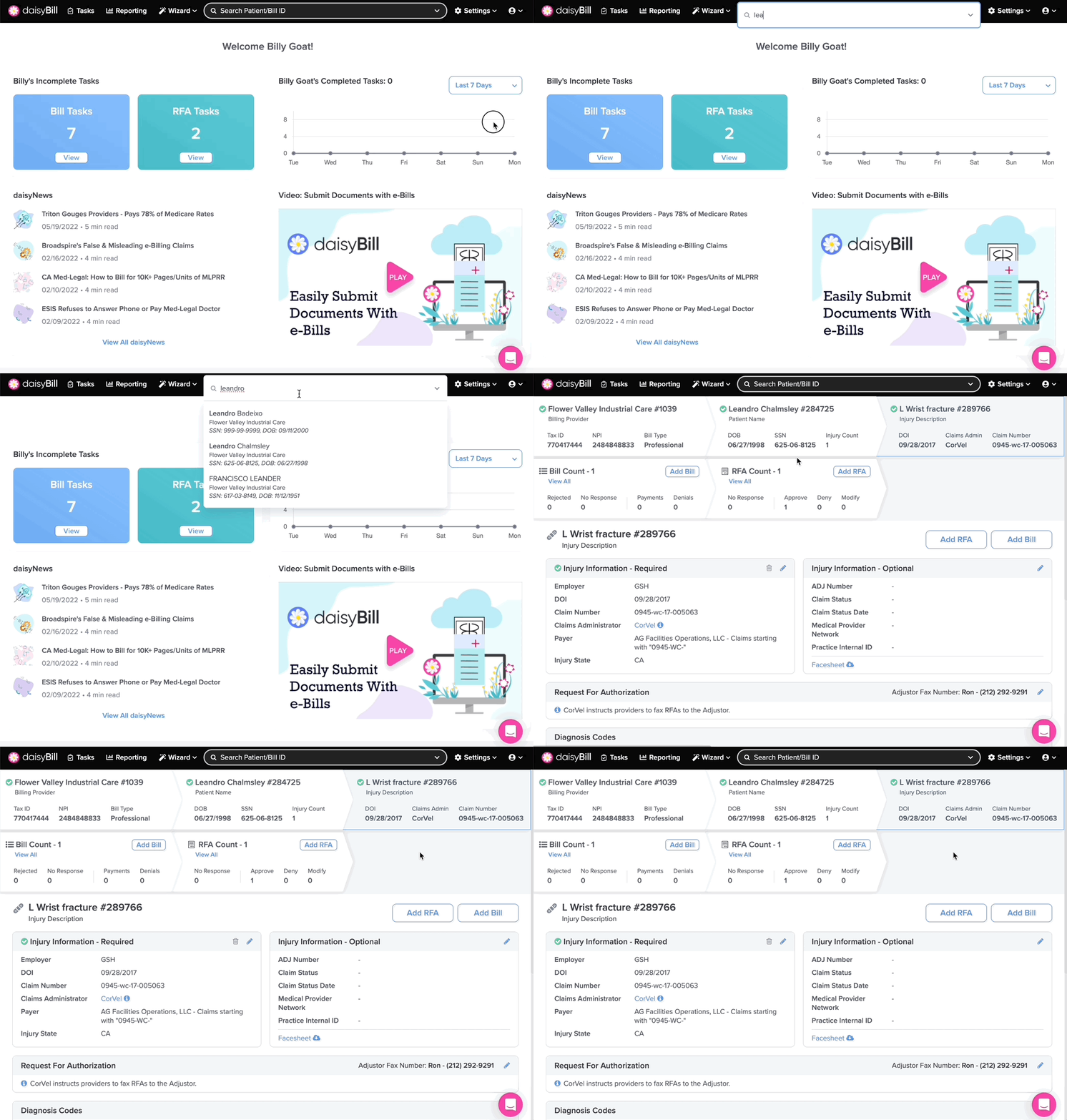
If the patient has a listed injury, clicking the patient’s name navigates you to the Injury page. Click the Patient breadcrumb to navigate from the Injury page to the Patient page.
A. To copy a Patient (and their injuries), click ‘Copy’
This will copy the Patient and Injury to another specified Billing Provider within your account. For more information, see the Help Article: Copy Patient.
B. To edit a Patient, click the ‘Pencil’ icon
For more information, see the Help Article: Edit Patient.
C. To delete a Patient, click the ‘Trashcan’ icon
For more information, see the Help Article: Delete Injury / Patient. Note: You can only delete a Patient if the Patient has no associated Injuries.
D. To add an Injury, click ‘Add’
Clicking ‘Add’ creates a new Injury for an existing Patient. A Patient can have multiple injuries at the same time. For more information, see the Help Article: Add Injury.
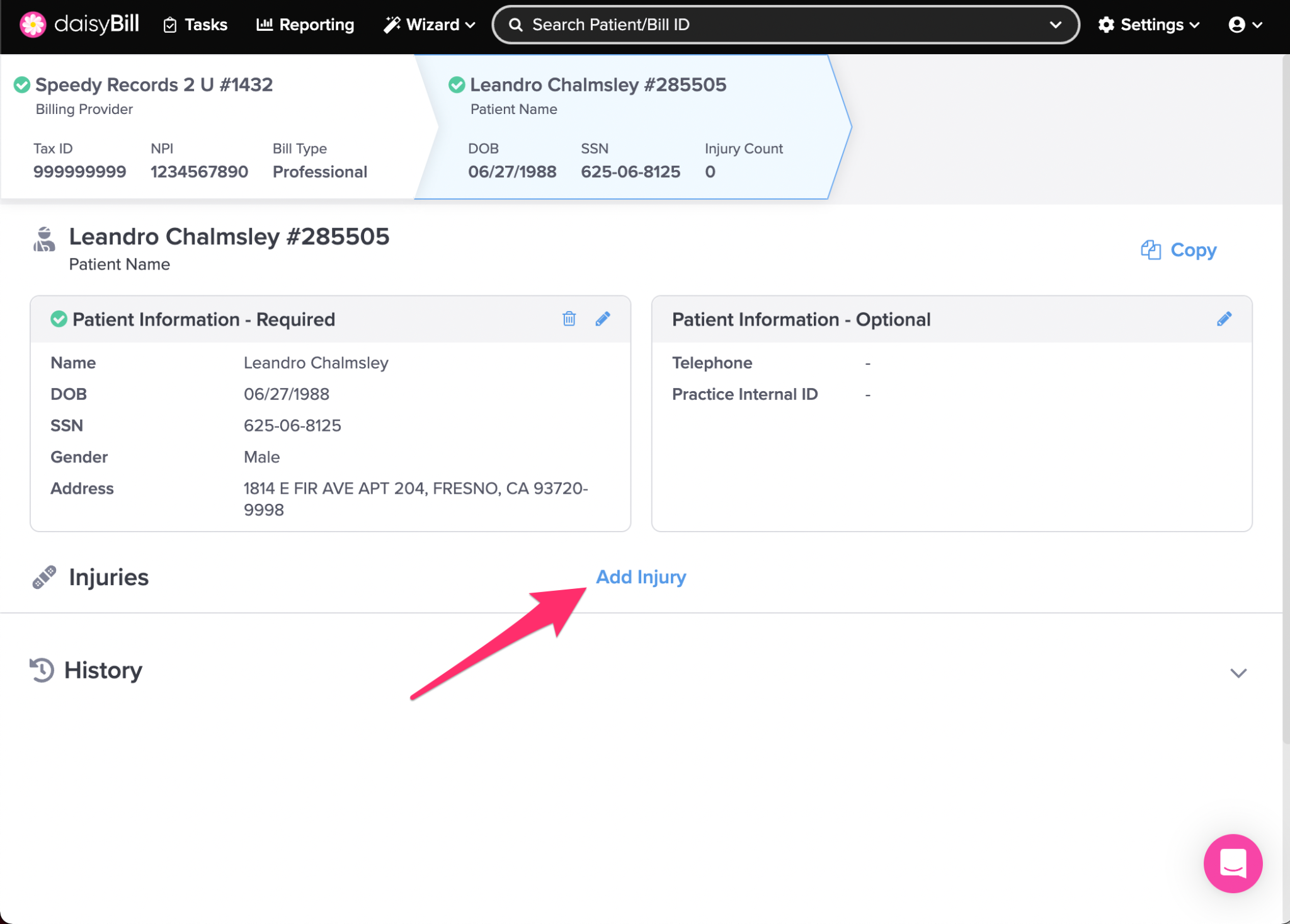 E. To view Patient history, click ‘History’
History displays a list of all changes made to Patient information.
Managing patients has never been so easy!